On a compatible Mac, start with OBS's native application audio capture. You may not need BlackHole, a Multi-Output Device or an Aggregate Device at all. Get one DAW source working first, then add your voice and camera.
The quick native setup
These feature instructions apply to OBS 30 or later on macOS 13 or later. Check that the particular OBS release you install supports your Mac; a feature's original minimum is not a promise about every newer installer.
- In OBS, click Sources → + → macOS Audio Capture.
- Choose application audio and select your DAW. Use all-desktop audio only when you want other apps too.
- Add macOS Screen Capture for the picture and choose the application, window or display you want to show.
- Check whether that screen source also supplies sound. Keep one copy of the music active.
- Play a loop, watch the OBS meter, then save and listen to a short recording.
The OBS native-audio guide documents the audio source, while the screen-source reference explains its capture modes. If the source name is absent, check your installed versions before following an older virtual-cable tutorial.
If macOS asks for permission
Allow the recording access OBS requests in System Settings → Privacy & Security. Depending on macOS, the pane can be called Screen Recording or Screen & System Audio Recording. Relaunch OBS if macOS asks you to. A permission change that requires a restart will not repair an already-running capture by itself.
Microphone and camera permissions are separate. A black camera preview does not mean the DAW audio route is wrong. Check the OBS Mac permissions guide for the relevant control.
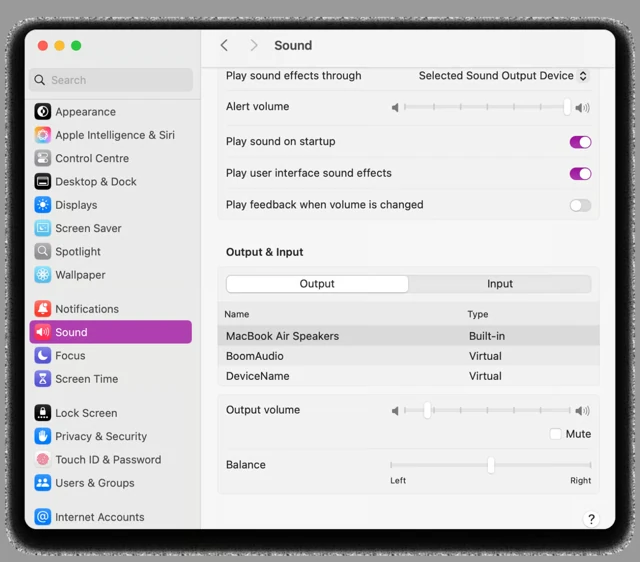
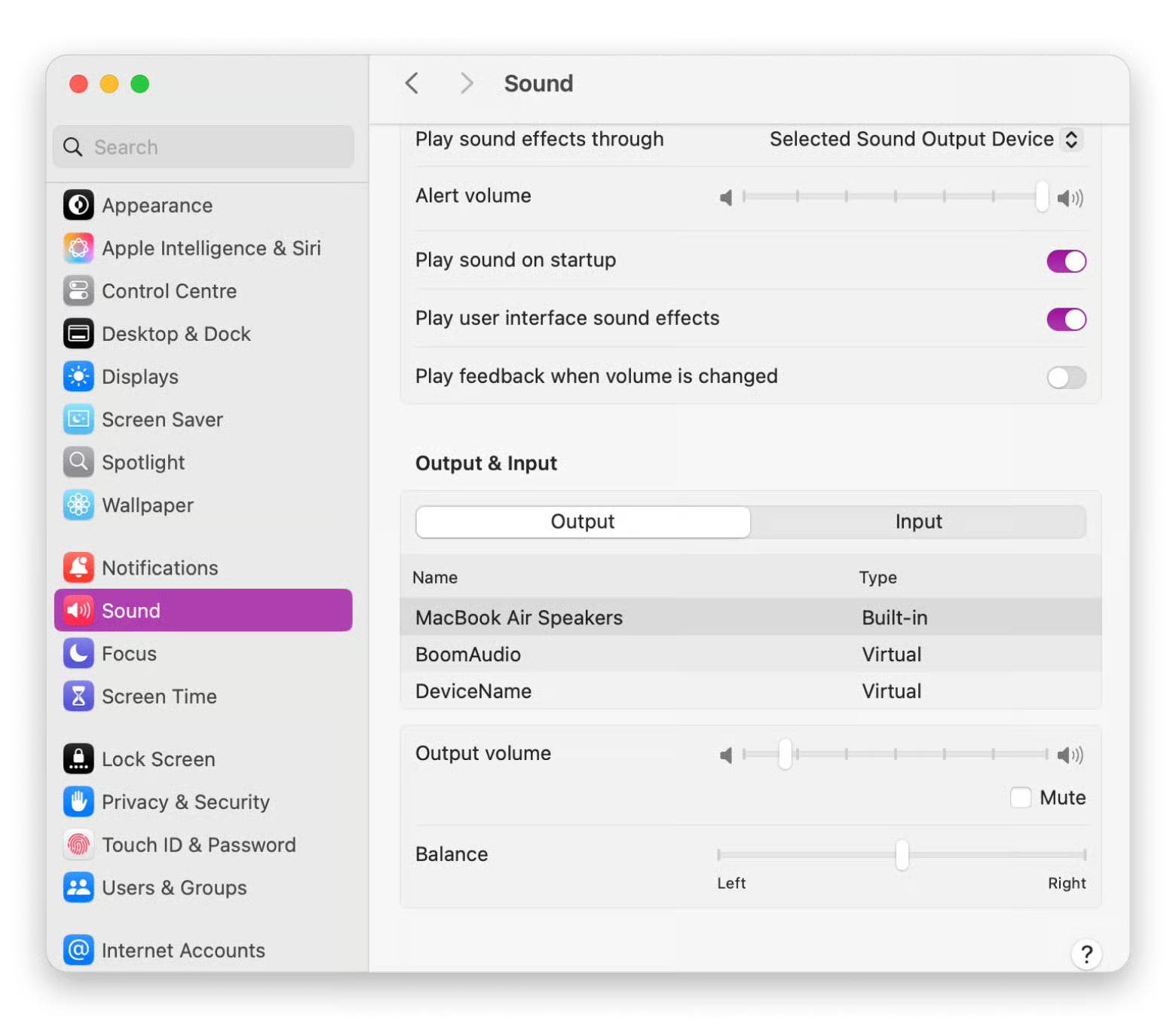
The Sound settings screenshot below shows a different job: choosing listening outputs and input devices. Seeing a virtual device in that list does not mean you need it for this recording.
Choose another route only for a reason
| Route | Useful when | Check before you commit |
|---|---|---|
| Native application capture | You want the DAW's sound without other apps | Selected app, permissions and a saved test |
| Interface loopback | You need a particular hardware/playback mix | Exact interface model and which channels enter loopback |
| BlackHole or another virtual device | Your recorder or routing needs an explicit virtual connection | Listening output, channel mapping and device rates |
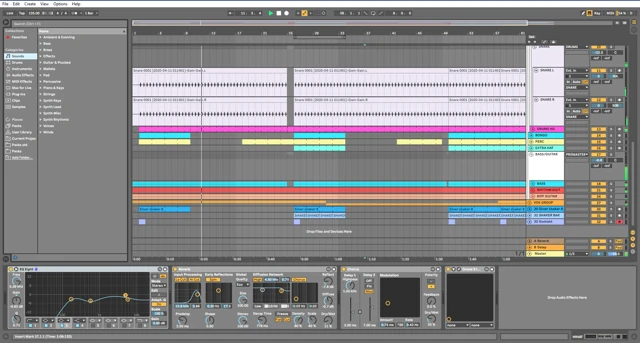
| DAW-side session capture | You want the mix and creative process together for later editing | Capture point and which original sources you keep |
An Aggregate Device combines device channels for an app that needs them together. A Multi-Output Device sends playback to multiple destinations. They are not two names for the same fix. Use Apple's Aggregate Device instructions when that is the actual requirement, or the without-BlackHole guide to keep a simpler setup.
Add narration after the music works
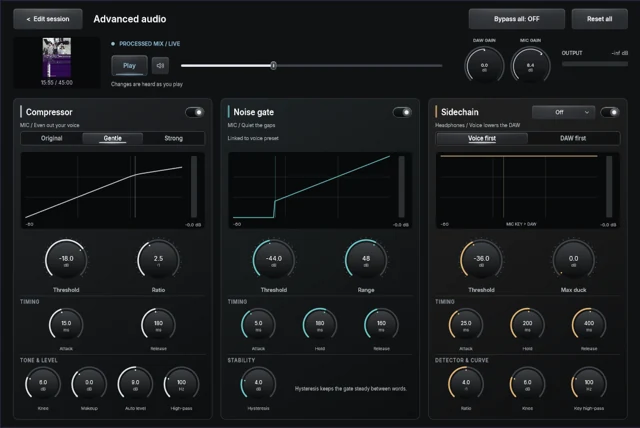
Choose the microphone as a separate recorder input. Stop the DAW and speak, then play music while staying quiet. Make sure the music feed does not already contain your voice through a monitor or loopback mix.
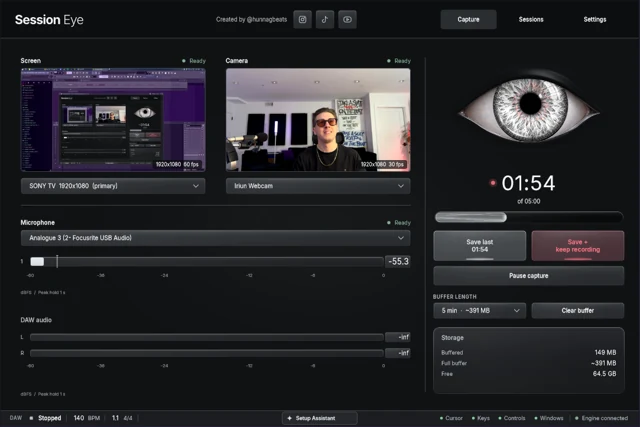

For a session you want to rework later, Session Eye keeps the DAW, screen, camera and external mic together with rolling history. Save the useful passage, then adjust the voice/music balance and framing in its editor. For live scenes and streaming, OBS may already fit the job well.
Read the failure before adding more software
No recorder meter: check the app selection, recording permission and source activity. Moving meter, silent file: inspect recording tracks and playback selection. Hollow or doubled sound: mute overlapping sources. These symptoms point to different places.
Use a wired listening setup while investigating unexpected device changes. Once the short test works, try a minute of the actual project, including external instruments and plugins. Keep that test as a reference for the next session.
Sources & details
Reviewed . Native OBS audio capture and permission steps checked against OBS and Apple documentation. Feature minimums are separate from the requirements of a current installer.