You can record DAW audio without BlackHole when your recorder has native macOS audio capture or your interface provides a suitable loopback input. Start with those paths. BlackHole remains useful for deliberate virtual routing, but it is not a universal prerequisite for Mac screen recording.
Why older instructions start with a virtual cable
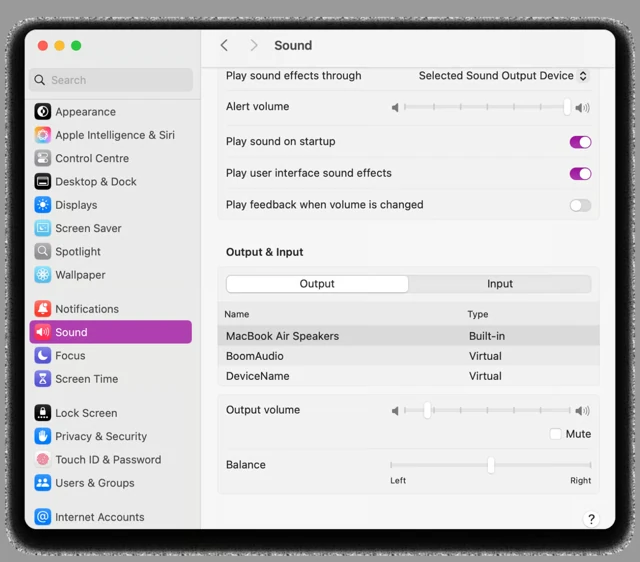
Older recording setups often lacked a native path for application sound. A virtual device supplied a destination the source application could play into and the recorder could read.
That advice may still be correct for the specific software and OS version shown. It should not be treated as a timeless rule for every Mac. Check your versions before rebuilding an audio system that already works.
BlackHole itself is an audio-routing tool, not a screen recorder, video editor or microphone-separation feature. Removing it will not fix a recorder with the wrong input, missing permission or disabled recording track.
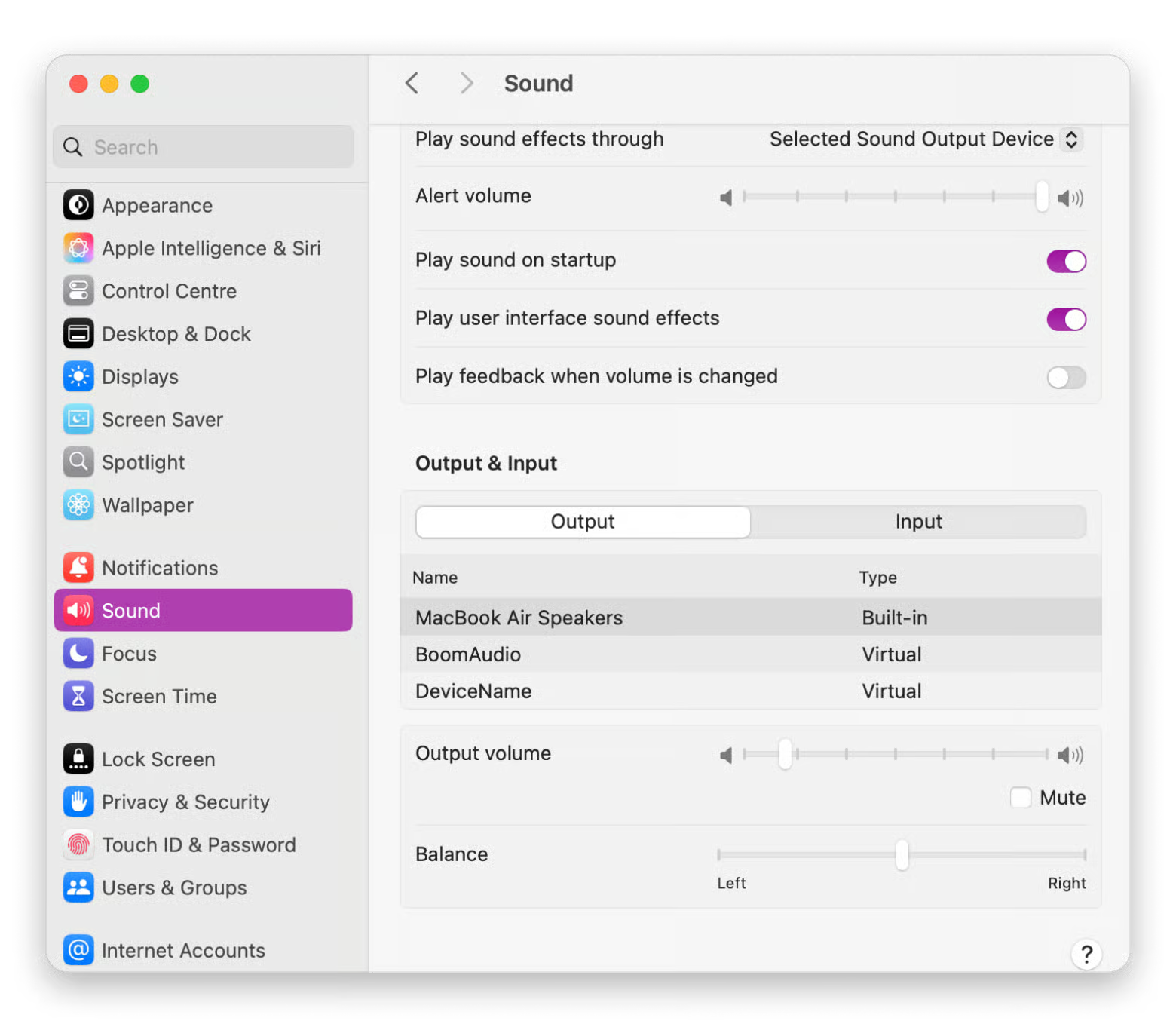
Native OBS capture: the first route to test
OBS documents native desktop/application audio on macOS 13+ and the dedicated macOS Audio Capture source in OBS 30+. Its modern macOS Screen Capture source can also provide audio where supported.
Use an OBS version compatible with your Mac. Select the DAW in the appropriate native source, grant the requested recording permission and test a small project. Follow the official native-audio guide; do not use an old global Desktop Audio screenshot as evidence that no native path exists.
Make a short file and play it back. Only after that succeeds should you add a separate microphone, camera or another audio route. This keeps a silent source from being hidden behind a working one.
Interface loopback: capture a defined mix
If your interface supports loopback, select the playback pair or monitor mix you actually want to record in its control software. Then choose the corresponding loopback input in the recorder.
The important question is what that loopback contains. A monitor mix may include your live mic, DAW music and another application. If you want separate narration, prefer a music-only feed and capture the mic independently.
Check your exact model and generation. The existence of loopback on another model with a similar name is not enough. Manufacturer instructions, such as Focusrite's current setup guide, describe the relevant input choices.
A DAW-centered recording workflow
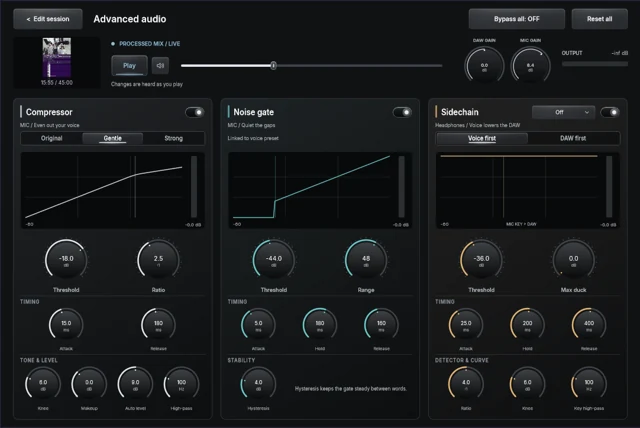
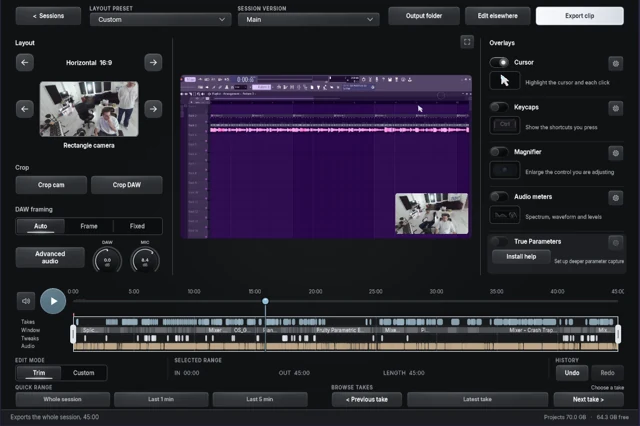
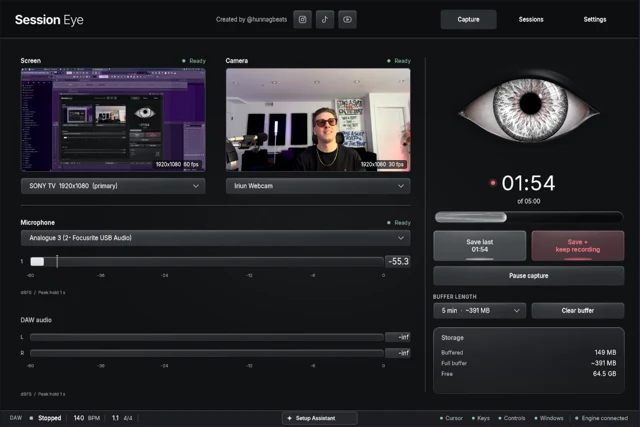
Another way to reduce routing work is to capture the production session from the DAW workflow itself. Session Eye keeps DAW audio, screen, optional camera and an external mic in a rolling session, with editing and layout decisions afterward.
This is useful when the goal is to preserve the production process rather than broadcast a finished scene. Follow the compatible build's setup and confirm the source meters before relying on the buffer. The product page carries release and platform details; specific minimum macOS versions should come from the build you install.
Direct session capture does not mean every signal in your studio automatically appears. External instruments and unusual routing still need to reach the selected DAW capture point.
When BlackHole still makes sense
Keep or use a virtual route when you need to connect applications that do not expose a suitable native capture path, or when your deliberate routing design depends on a virtual device. It can also be appropriate for older compatible software arrangements.
The BlackHole support page distinguishes system-audio routing, mic-plus-system routing and application-to-application routing. Choose the arrangement that matches the actual job.
An Aggregate Device combines channels from devices. A Multi-Output arrangement sends playback to multiple destinations. Neither is simply a checkbox for “record internal audio.” A clear diagram of source, monitoring destination and recorder input will prevent more mistakes than repeatedly adding devices.
Remove complexity only after a successful test
If an existing project uses a virtual device, write down its input/output choices before changing them. Create a small test with the simpler route first. Confirm your headphones, mic and any external instrument still behave correctly.
Do not uninstall a working routing device just because a new tutorial says it is unnecessary. Switch the application to the replacement route and verify it, then decide whether you still need the old device elsewhere.
If audio disappears during the transition, restore the known configuration and identify the failing boundary. This is especially useful when a DAW reopens the last selected output automatically.
What to check when “no BlackHole” is still silent
Check OS recording permission, source application selection and the DAW's real main output. Watch the recorder meter while the project plays. If it moves, inspect file-track assignment before changing routing again.
If sound is doubled, disable one of the overlapping native, loopback or virtual feeds. If your microphone is embedded in the music, inspect the loopback mix. Use the Mac music-and-mic guide for independent narration.
For livestreaming, OBS offers a mature live-scene workflow. For local production clips, prioritize a setup that preserves the musical moment and remains easy to verify.
See the signal path

Sources & details
Reviewed . Compares native capture, interface loopback and virtual routing. BlackHole remains useful when a particular route needs it.