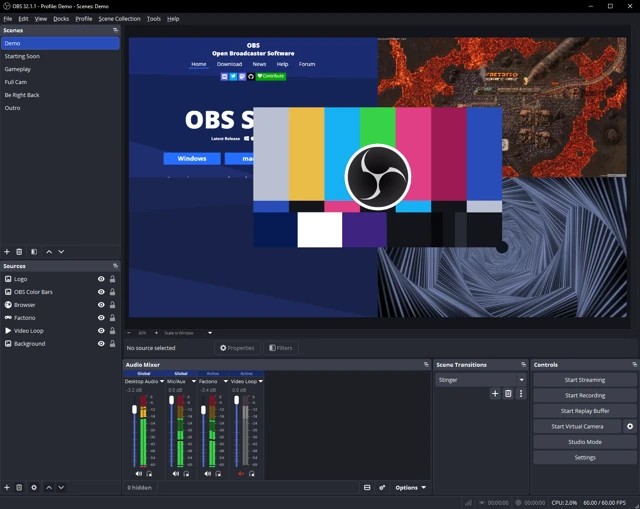
Your headphones can hear the ASIO output while OBS Desktop Audio hears nothing. That is a routing problem, not a screen-recording problem. Keep the driver that works for making music, then choose how its output reaches the recorder.
Which route fits your setup?
| Your situation | Try first | The catch |
|---|---|---|
| Your interface offers loopback | Capture its playback-only loopback mix | Not every model or driver exposes the same inputs |
| You want a session to edit afterward | Capture inside the DAW with Session Eye | The wanted music must pass through the capture point |
| You only need a playback walkthrough | Test a shared Windows output path | Playing latency and input behavior can change |
| You need specialist input channels in OBS | A compatible ASIO input plugin | An input still needs to contain the wanted music |
For exact FL buttons, use the Windows quick setup. The choice here is the audio path, not a list of programs you need to install together.
Keep the production driver: interface loopback
Open the interface's control app. Find the playback pair carrying your DAW's main mix and send that pair to loopback. Then select the loopback input in the recorder using the route your manufacturer supports.
Start with music only. Some monitor mixes include analogue mic inputs as well as computer playback; that can quietly put your narration into the music recording. It can also capture browser audio if everything shares the same playback pair.
Check the exact model and generation. The Focusrite loopback list is a useful example of why a brand name alone is not enough. Keep OBS monitoring out of the same loopback it records, or you can create a repeated return.
Keep the music before it reaches the driver
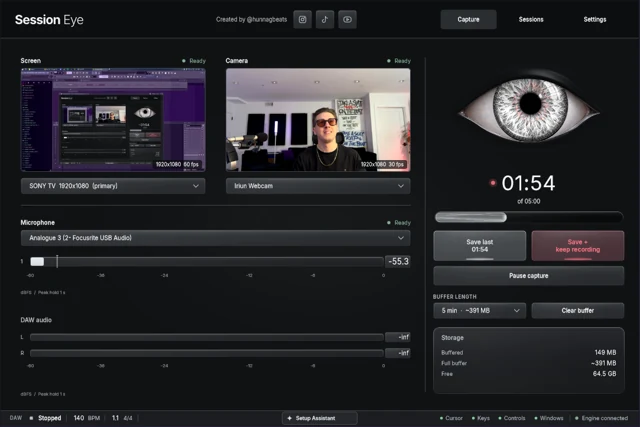
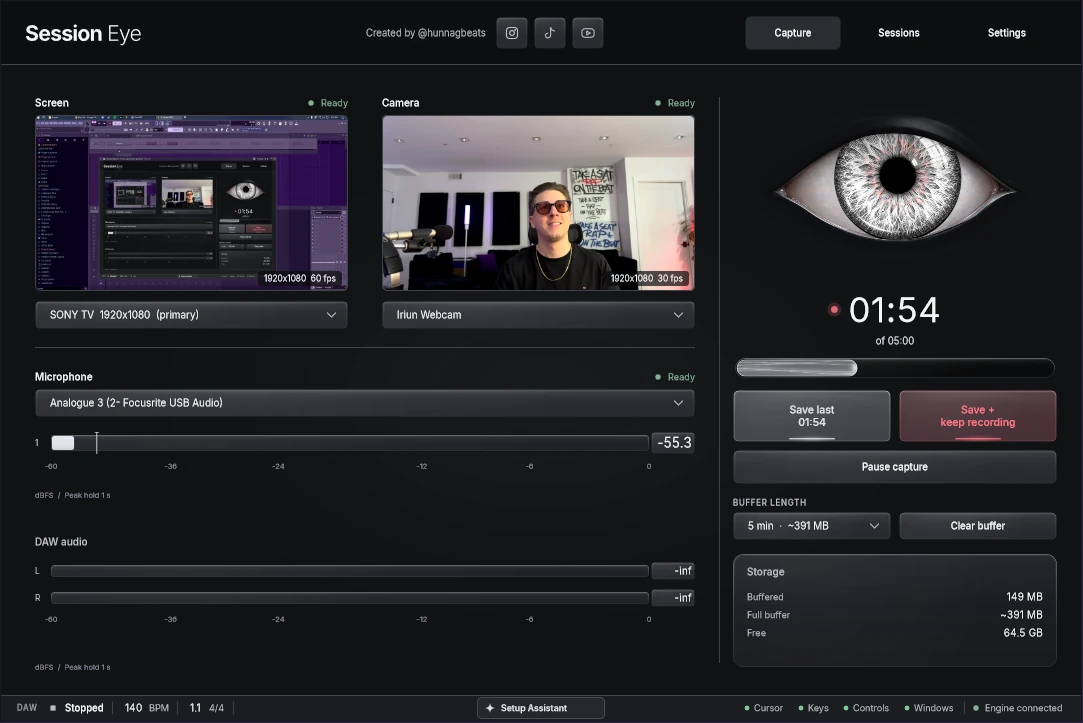
A DAW-side capture point receives the music in the project rather than trying to intercept every hardware playback route. Session Eye uses that approach alongside screen, camera, mic and rolling history.
Put capture on the mix you want to keep. Then test a track mute, a master effect and any hardware return. Music routed directly to another output may bypass that point. This short check matters more than whether two applications show the same interface name.
It also changes what you save: you can retain a session and choose the clips, mix and layout later. If you need a live broadcast instead, keeping OBS at the center may be more convenient.
Changing drivers is an option, not the first reflex
For a planned walkthrough, a shared-audio path may be perfectly adequate. FL Studio ASIO is one option within FL; other DAWs offer different choices. Write down your original device and buffer before testing a change.
Play a MIDI instrument and record an external input as well as playing back the song. A new path that screen-records correctly but feels delayed under your fingers is not an improvement for every session. Keep it only if it fits the job you are doing.
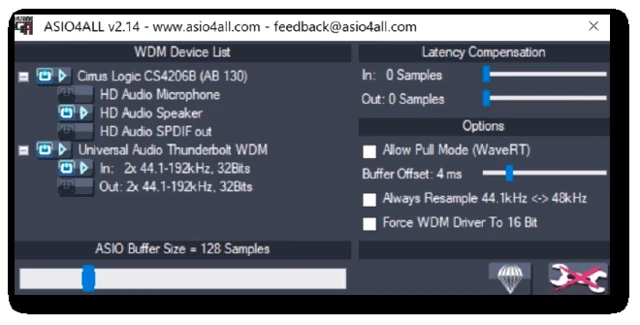
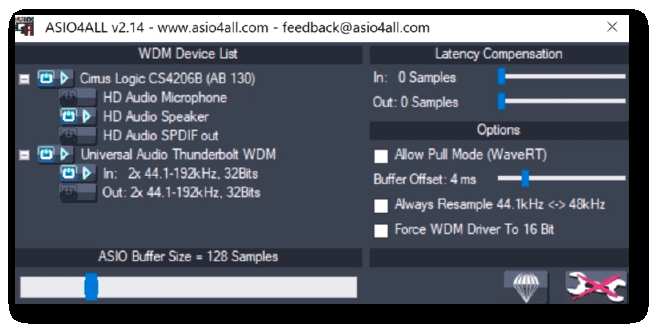
The ASIO4ALL panel below is an illustration of device and buffer selection. It is not a button that sends every ASIO output into OBS. The ASIO4ALL manual covers what those device selections actually do.
An ASIO input plugin still needs a signal
An OBS ASIO input plugin can expose channels a standard source does not offer. Follow the manufacturer's OBS setup and check compatibility with your installed OBS version.
The important word is input. Choosing a driver does not turn an unused input into your DAW's output. Confirm a loopback, return or other feed actually carries the music before building the rest of the scene.
Finally, save a short recording and listen. If the OBS meter moves but the file seems silent, check tracks in the recorder and player. Changing the ASIO driver again is unlikely to fix a track-selection mistake.
Sources & details
Reviewed . Loopback support is model-specific. ASIO4ALL 2.14 is shown as a device-panel illustration; the setup links cover driver behavior and recorder input choices.