For an FL Studio video with clean sound, OBS needs both a picture source and a working music source. Here is the quick Windows setup, followed by the Mac route and a short recording test. Start with the driver FL is already using.
Quick setup: FL Studio + OBS on Windows
If you use FL Studio ASIO
- In FL Studio, open Options → Audio settings. Confirm FL Studio ASIO is selected; note your original device before changing it.
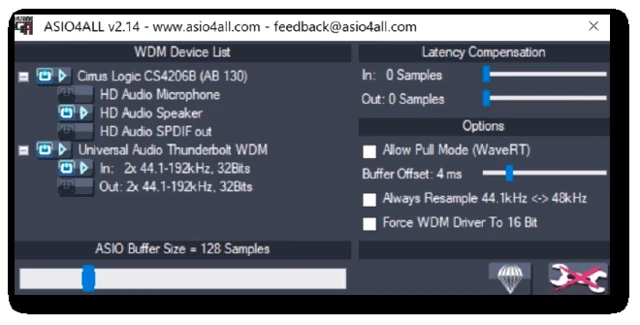
- Open Show ASIO panel and check the output device. Play your project.
- In OBS, use Sources → + → Application Audio Capture. Select the FL Studio window. The source may carry a BETA label.
- Watch the new OBS meter while the music plays. If it stays still, try Audio Output Capture with the Windows playback device selected in the FL ASIO panel. Keep only the working route active.
- Add Window Capture for the FL Studio picture. Open a plugin and check it appears; use Display Capture on a clean screen if separate plugin windows are missed.
- Click Start Recording, play ten seconds, then Stop Recording. Open the file through File → Show Recordings and listen.
FL Studio ASIO uses the Windows audio stack, which can make this route convenient. It is not a promise that every application-capture configuration works. Image-Line's driver notes and OBS's application capture instructions explain the relevant settings.
If you capture the whole playback device, it can include other apps. Silence browser tabs and notifications. If Window Capture also has Capture Audio enabled, do not capture that same music again through a second source.
If you use your interface's ASIO driver
- Keep the driver that already feels good to play through.
- Open your interface's mixer app and check its manual for loopback. The exact model matters.
- Feed the playback pair carrying FL's Master into the loopback mix. Leave narration out if you want a separate voice track.
- In OBS, add Audio Input Capture and choose the loopback input exposed by the driver. If it is not available there, use the manufacturer's supported OBS route.
- Play FL, check the OBS meter, then run the ten-second recording test above.
A physical microphone input is not automatically a loopback input. If your interface has no suitable loopback, use the ASIO alternatives instead of repeatedly selecting similarly named devices.
Check the part of FL you are recording
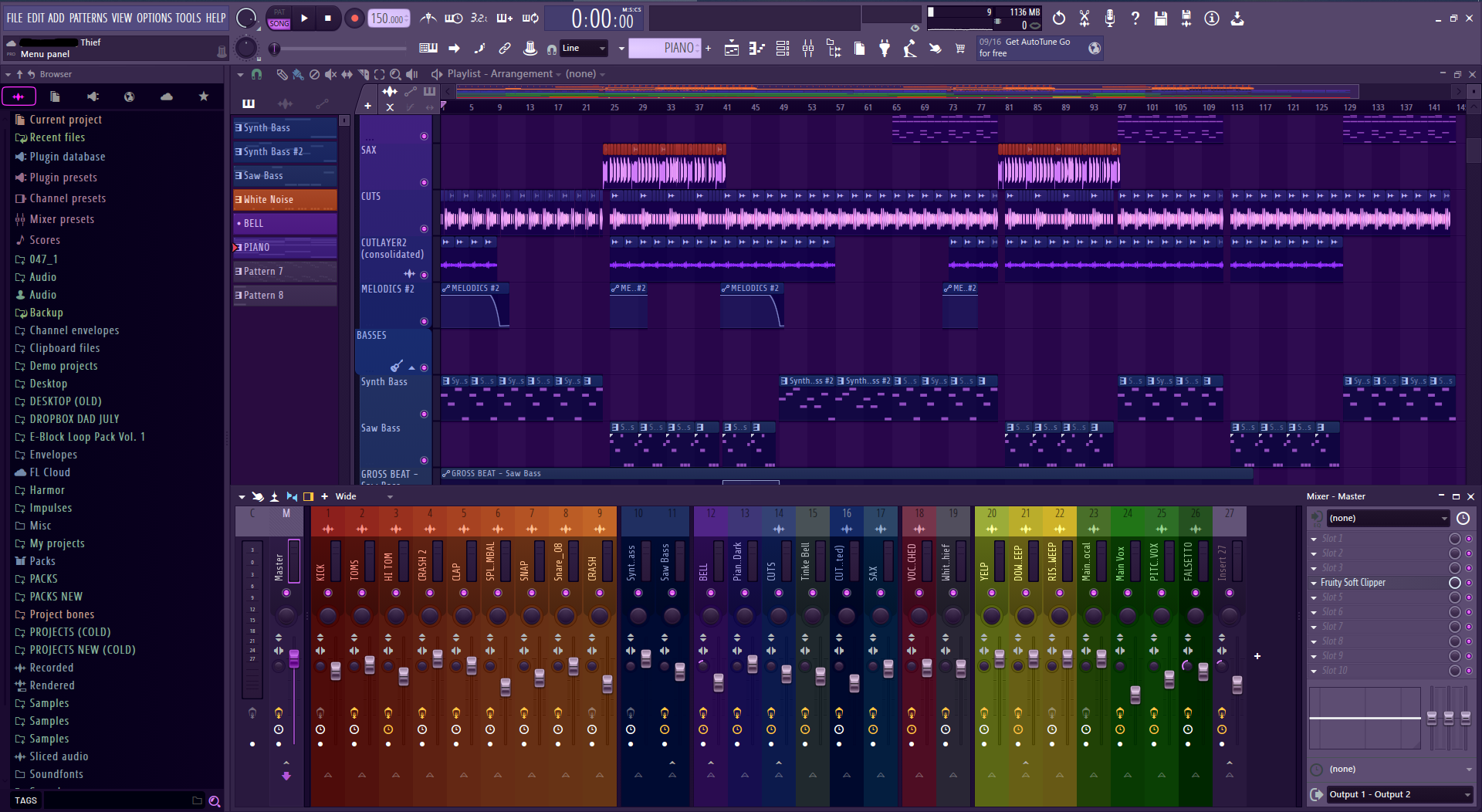
In this screenshot, the Playlist holds the arrangement and the Mixer shows the Master. Use Song mode for an arrangement walkthrough; a Pattern playing by itself can sound very different from the visible Playlist.
Switch between the Playlist, Mixer and your main plugin during the test. The best capture method is the one that includes the windows you actually use. Keep labels readable rather than squeezing your whole desktop into a small frame.
On Mac: capture FL's application audio
Use the Mac setup to add native application audio and the FL picture. Start with one audio route, then add the microphone. ASIO settings are a Windows topic; there is no reason to hunt for them on a Mac.
Prefer to save the moment afterward?
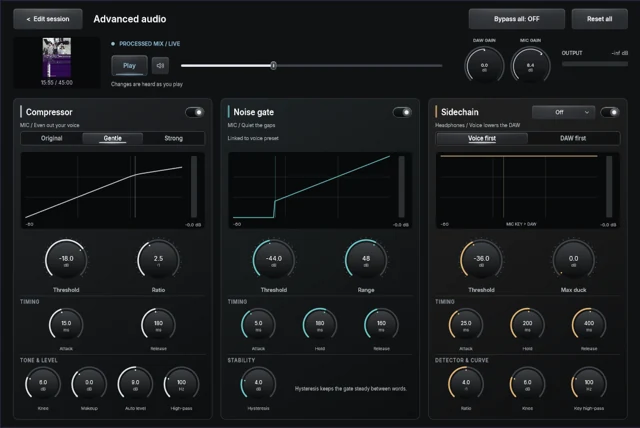
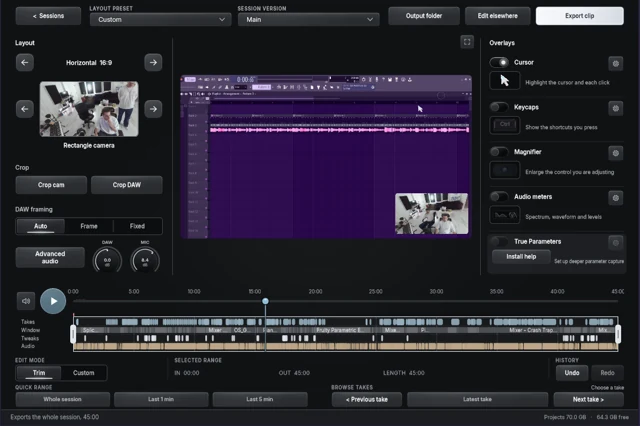
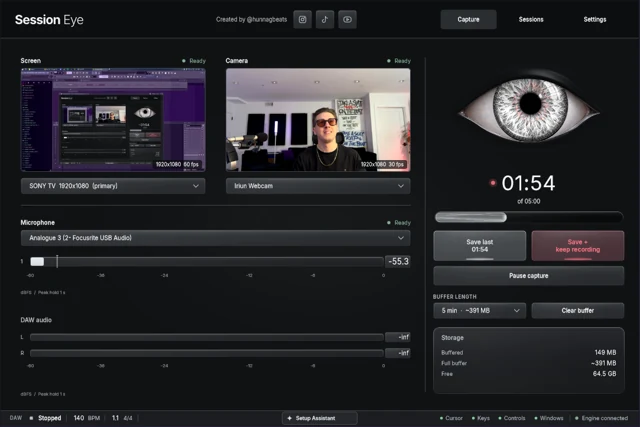

In Session Eye, select the screen, confirm the DAW audio meter and let capture run while you produce. Save last keeps the recent history; Save + keep recording keeps going when the next part belongs in the same session. You can choose the clips and camera layout afterward.
For a five-minute save, the available history must already include five minutes. The illustrated save walkthrough shows the counter, saved-session library and editor.
If OBS shows picture but no music, use this short diagnosis. If music is fine but speech is doubled, go to separate music and mic tracks.
Sources & details
Reviewed . Windows steps checked against Image-Line audio settings and OBS application capture guidance. Interface loopback names vary by model; the saved test confirms your route.