If Live is playing but OBS is silent, follow the music from Live's main output to the OBS source. Start with the symptom below. Cue monitoring, a direct hardware return and the actual main mix can all sound fine in headphones while feeding different places.
Match the symptom
| What you can see or hear | Most useful next check |
|---|---|
| Track meter moves, main meter does not | That track's Audio To destination, mute/solo and group routing |
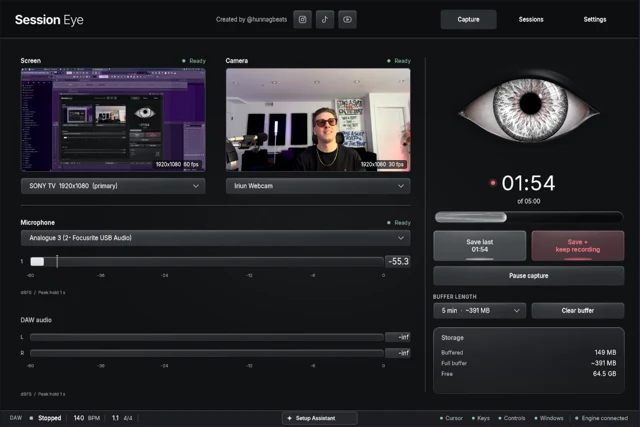
| Main meter moves, OBS meter does not | ASIO/loopback or native application capture |
| OBS meter moves, saved video seems silent | Saved tracks and the player's selected audio track |
| Metronome is in headphones but not in the recording | Cue Out versus the captured mix; this may be intentional |
| Mic records, music does not | Keep the mic; repair the independent music source |
| Voice or beat sounds doubled | Duplicate source or a monitored return being captured again |
Try one change, save a short test, then judge the result. That is quicker than ending up with five partly working audio routes.
The Live-side check
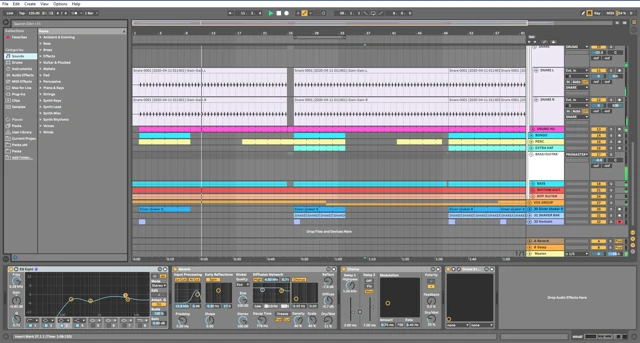
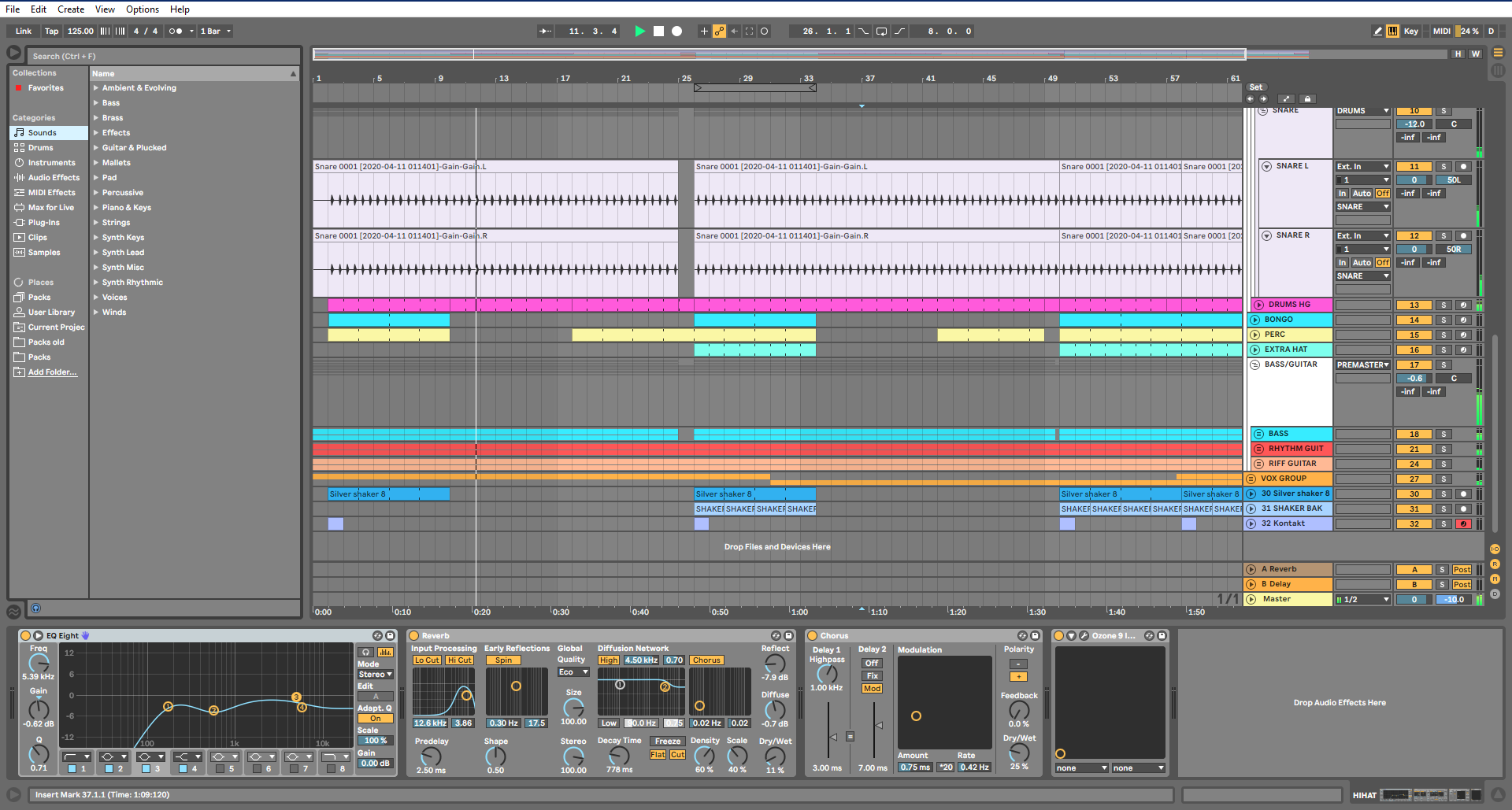
Use a normal audio or instrument track routed to Main (or Master in older versions). Play a recognizable clip and follow its meter to the final mix. A track routed to a separate hardware pair needs that pair in the capture, or it needs to be brought into the mix you are recording.
Inspect Cue Out separately. Auditioning a browser sample through a private headphone feed does not prove the audience mix contains it. The opposite mistake is recording an interface monitor mix that includes a private cue you meant to keep out. Ableton's routing reference explains these destinations.
If external hardware is audible only through direct interface monitoring, check its return into Live. The recorder cannot keep a hardware performance that never reaches its selected input.
The recorder-side check
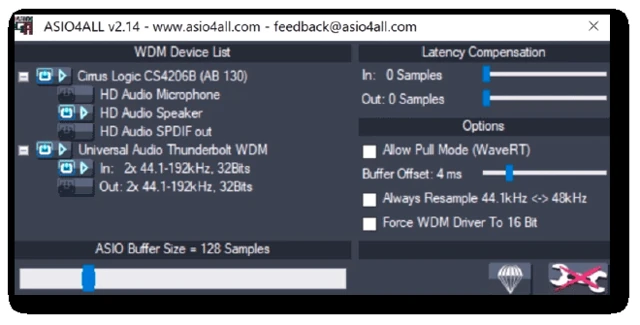
Windows: identify Live's driver in Audio settings. With ASIO, check the interface playback and loopback meters before changing OBS. Capture the input that contains the music, using your manufacturer's supported method. The ASIO guide explains the options without assuming every interface has loopback.
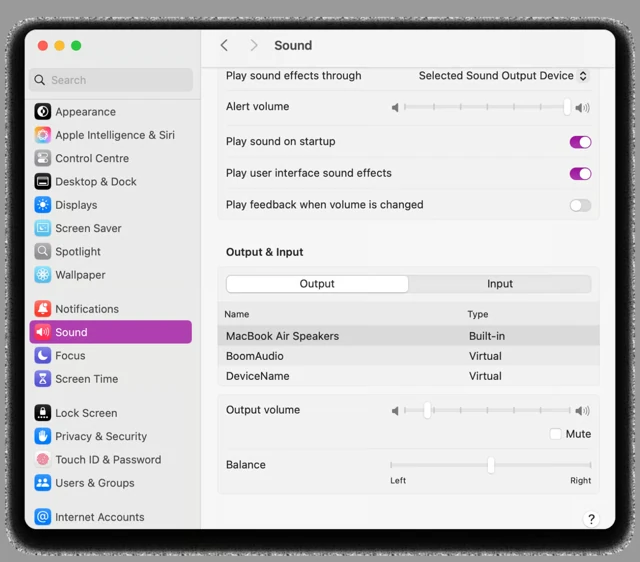
Mac: check that the native capture source targets Live and that OBS has recording permission. Older instructions built around the global Desktop Audio menu can miss the modern application source. Use the Mac capture recipe.
Both: keep a single music route active during diagnosis. If application capture and a loopback both hear the beat, mute one before making another recording.
A moving meter changes the diagnosis
Once OBS sees the music, stop changing the DAW driver. Check whether the source is muted, whether it is set to output rather than monitoring only, and which recording tracks receive it. Then check those tracks are enabled in Output settings.
Open the file in your editor and inspect each audio track. A silent default playback track can hide a perfectly good music recording on another track. The Live narration guide includes a practical editing test.
Finish with your actual Set
Record a minute containing the loud section, a quiet section and one of your usual window changes. Use an external instrument if the real session uses one. Check the beginning and end for timing as well as sound.
Crackling under load is a different problem from complete silence. Reduce the video workload for a comparison and check the DAW's audio buffer. Keep a record of settings that worked so the next session starts with music instead of another troubleshooting round.
Sources & details
Reviewed . This diagnosis follows Live’s output and cue routing. Use the linked Mac or ASIO setup for recorder-specific steps.