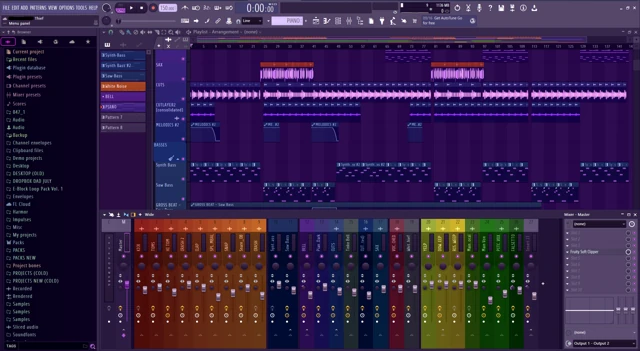
If Session Eye or OBS Replay Buffer was already running, you can keep the last five minutes of FL Studio. If nothing was capturing, start with what might still be recoverable. A five-minute setting cannot supply five minutes that were never recorded.
1. Check the history you actually have
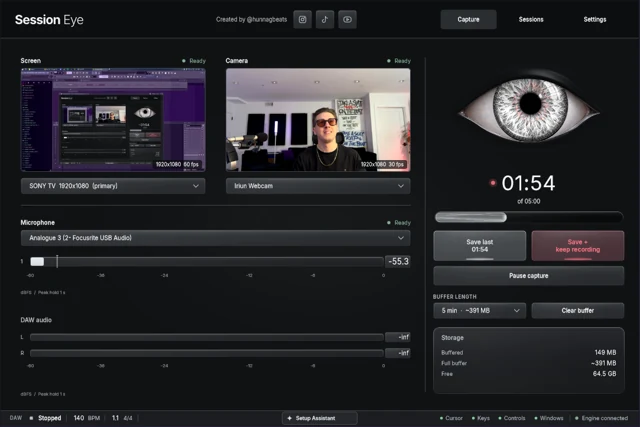
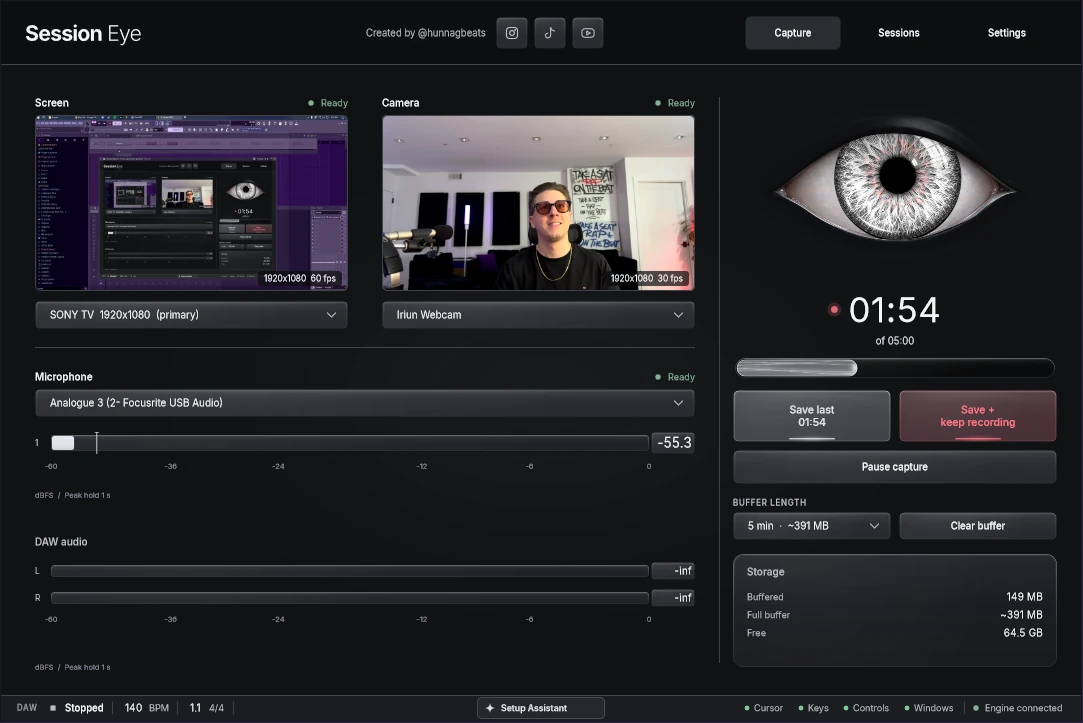
In Session Eye's Capture view, select the screen and confirm the DAW audio meter moves. Add the camera and external mic if you want them in the eventual video. Choose a buffer long enough for the passage plus the time it takes to notice and save it.

Watch the available-history counter grow while you work. This short demo shows the counter and source previews in motion. It is an example of the capture screen, not a five-minute performance.
If you started capture two minutes ago, only those two minutes are available. Let the history fill before relying on a five-minute save. Keep an eye on free storage and interruptions too; the useful number is the time you can save now.
2. Save while the moment is still there
Click Save last when the good part has already finished. Choose Save + keep recording when the next few minutes belong with it. The two buttons sit beside the available-history display.
Save first, then think about the edit. Continuing to tweak the project while deciding whether a moment is worth keeping can let its beginning roll out of the buffer. A slightly long saved session is easier to deal with than missing the first bar.
3. Open the saved session
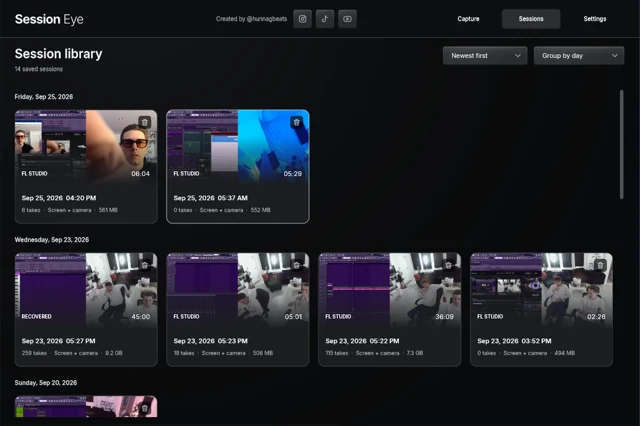
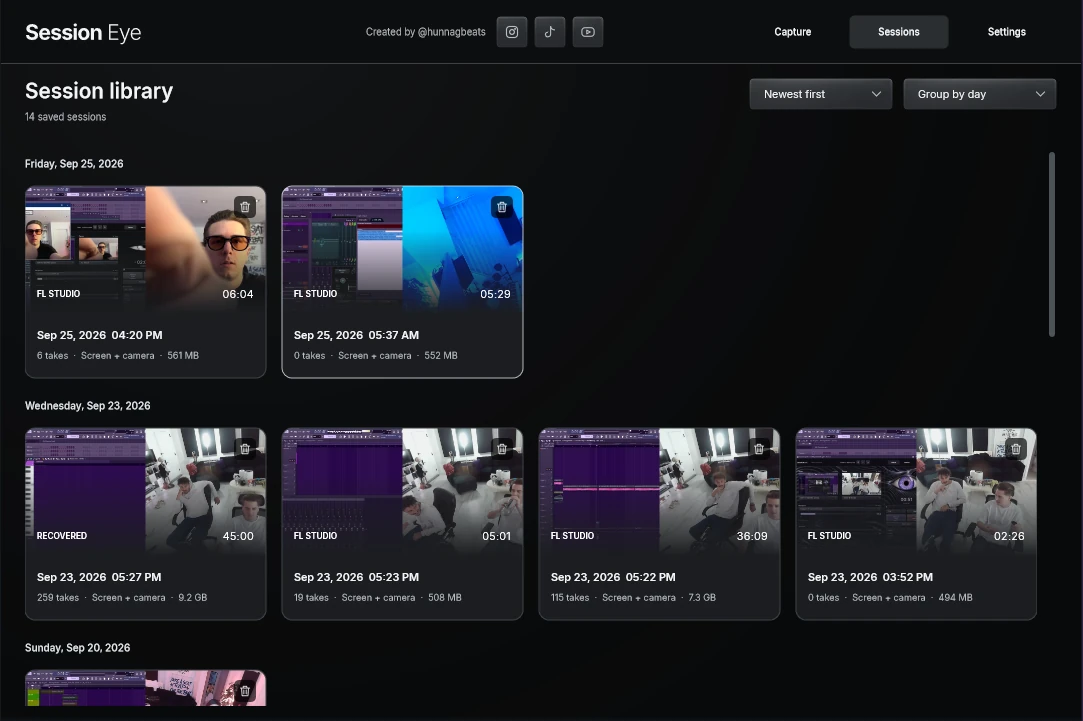
Find the capture in the session library. The screen and camera thumbnails help you recognize the work; check the actual session rather than assuming that a running capture timer means it was saved.
Open it and listen near the start. Was the build-up preserved? Is the music there? Does the camera contain the reaction you wanted? Keep the source session while you make the shorter edit.
4. Keep the musical before-and-after
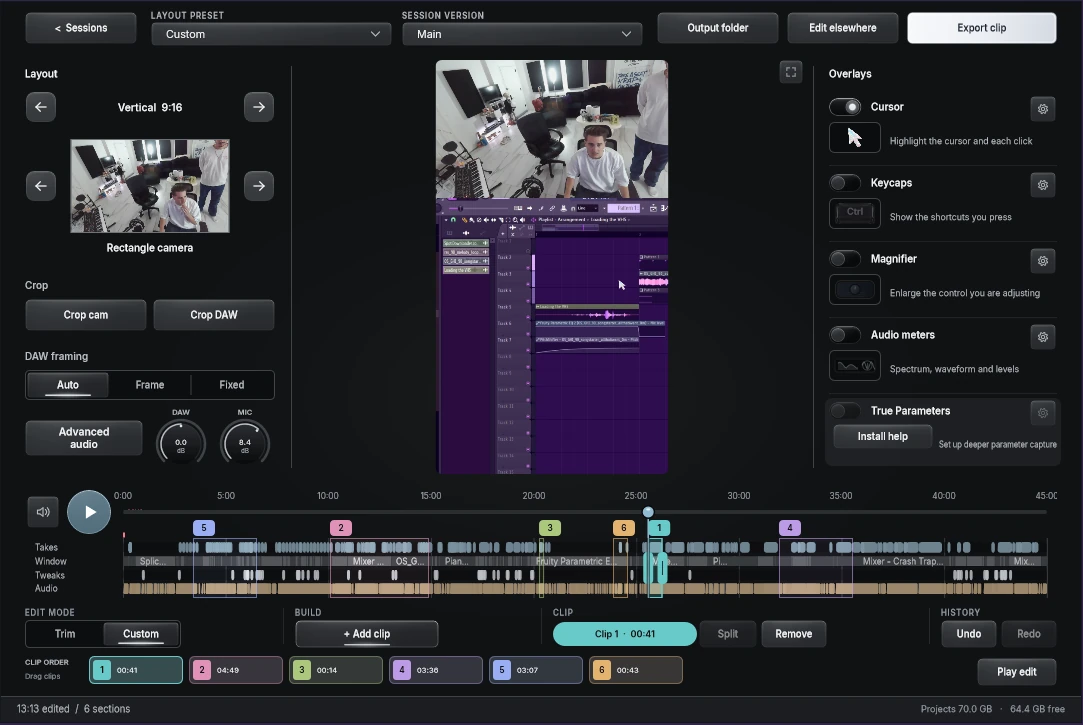
In the editor, choose the passage around the change. Include enough of the original sound for a viewer to understand the payoff. An isolated drop can be exciting; a sound-design lesson also needs the “before.”
Use one continuous selection for a performance, or a Custom edit for a few separate moments. Reframe the camera and DAW for the destination after choosing the music. A vertical clip does not need to show the entire desktop at once.
If you prefer OBS Replay Buffer
Set its replay time to 300 seconds, start the buffer, and use Save Replay when the moment happens. The detailed OBS Replay Buffer setup covers the settings, hotkey and test. Check the saved duration: memory limits and encoding settings can shorten the history you actually retain.
A standard OBS replay keeps the scene as it was composed. Session Eye is useful when you want to adjust the original screen/camera layout later. Both need capture running beforehand.
When the part you want is missing
If the video starts too late, check whether capture began recently or the moment aged out. For longer ideas, use the previous-ten-minutes guide.
If only the notes matter, FL's score log may help: Image-Line's recording overview explains the distinction. MIDI notes, a project backup and a saved screen recording preserve different pieces of the session. None guarantees the exact sound of a synth whose settings have since changed.
Sources & details
Reviewed . Capture, Library and Editor examples show Session Eye’s save workflow. The FL reference concerns note logging, which is distinct from video or audio history.