OBS Replay Buffer saves recent scene footage after the moment happens. Enable it, start it, then use Save Replay when you want to keep something. Starting the buffer and saving the buffer are different actions; neither can recover time before capture began.
Set up one working scene first
Add the screen, music and optional camera/mic you actually want in the replay. Make a short ordinary recording and listen. If DAW sound is missing, fix FL Studio routing or Ableton routing before adding replay.
In the OBS 32.1.1 screenshot, Start Replay Buffer is in the Controls dock on the right. The preview shows the scene that would be captured. The audio meters below help check the selected sources, but the saved-file test still matters.
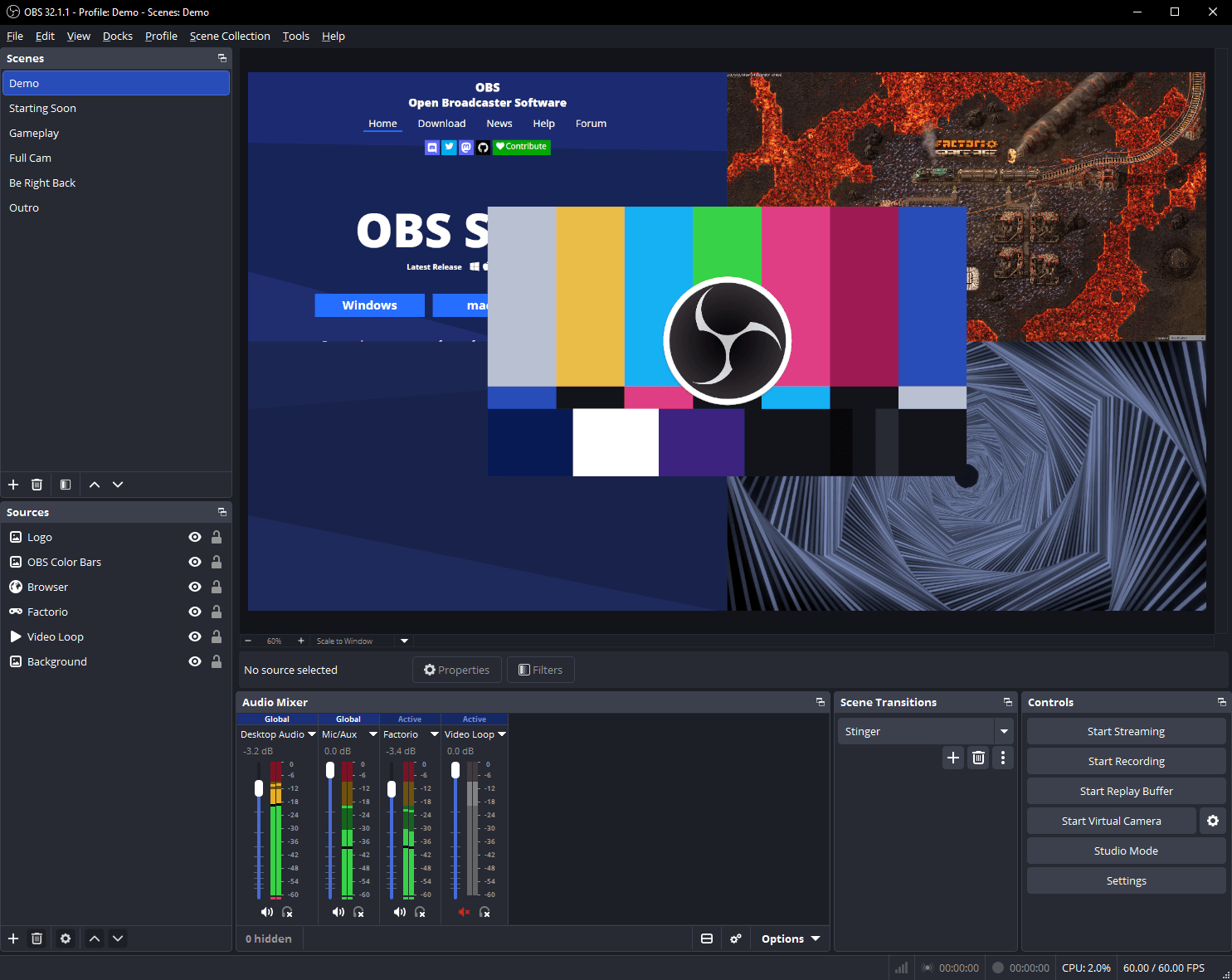
Enable, start, save
- Open Settings → Output. In Simple output mode, enable Replay Buffer. In Advanced mode, use its Replay Buffer settings with a supported standard recording setup.
- Set Maximum Replay Time to your target: 300 seconds for five minutes or 600 for ten. Check the memory setting if your output mode exposes it.
- In Settings → Hotkeys, assign Save Replay to a shortcut you do not use in the DAW. Apply the settings.
- Click Start Replay Buffer in Controls. Let history accumulate.
- Perform a recognizable action, then press your Save Replay hotkey while the DAW has focus.
- Open the saved replay in your recording location. Check the beginning, the music and any voice or camera.
OBS's current interface strings identify these settings and their restrictions. Replay is unavailable with Custom FFmpeg output or the Simple mode's lossless recording quality; choose a standard compressed recording setup.
If the replay is shorter than expected
The maximum time does not override capacity. A recent start, a restrictive memory limit or higher encoding demands can leave less history available. Test the full duration at the actual recording settings you intend to use.
For a ten-minute target, make a visible marker near the beginning, continue long enough to fill the buffer, then save when that marker should still be inside the window. If it is missing, measure the saved duration before changing anything else. The ten-minute guide includes a simple capacity example.
Common replay mistakes
| Symptom | Check |
|---|---|
| Nothing was saved | Replay was started, and the shortcut was Save Replay rather than Stop Replay Buffer |
| Hotkey only works in OBS | Conflicting DAW shortcut or hotkey focus behavior |
| Video has no music | The source/track route, using an ordinary recording test |
| Camera covers the useful control | The composed scene; standard replay does not restore hidden screen pixels |
| Clips are hard to find | Recording location and names before the next session |
If you want OBS to start replay when you launch it, its documented launch parameter is --startreplaybuffer. Add automation only after the manual setup works; launching a broken source configuration more reliably does not fix its contents.
For later camera/screen recomposition, compare Replay Buffer alternatives. For a working broadcast scene that simply needs an occasional replay, keeping this OBS setup may be all you need.
Sources & details
Reviewed . Replay controls checked against OBS documentation and source labels. The supplied OBS screenshot is version 32.1.1; labels can vary with output mode.