To record a DAW, webcam and microphone together, create four capture paths: screen picture, camera picture, clean DAW music and independent narration. Confirm each source works alone, then test them together in a saved recording. This avoids a common failure: a good-looking video whose only audio came from the webcam mic.
Plan the sources and the monitoring
| Source | What it should contain | What to exclude when possible |
|---|---|---|
| DAW audio | The intended musical mix | Duplicate narration and private cues |
| Microphone | Your explanation or reaction | Speaker bleed and a second digital voice feed |
| Screen | The relevant DAW and plugin windows | Unrelated notifications |
| Camera | Face, hands or hardware action | A second unwanted audio source |
Your headphone feed is a fifth practical concern, but it is not automatically the same as the audience mix. You may need to hear a click or cue that should not appear in the recording.
Start with headphones and a small project. Establish the clean music route using the DAW recording pillar before adding other sources.
Build an OBS scene in stages
Add the screen source, then the audio route appropriate to Windows/ASIO or macOS. Make a short recording at this point.
Next add the microphone as a distinct input. Choose the correct interface channel, and disable a duplicate global input if the same device is already active. Then add the webcam video source. Inspect whether it also introduces camera audio and disable that when the external microphone is the intended voice source.
OBS's audio source documentation and video source reference describe the source controls. A missing camera may be a permission, device-use or unsupported-mode problem; a missing DAW mix is a separate audio-routing problem.
Decide between live composition and later layout
For a live stream, viewers see the scene you compose now. Place the camera, size the screen, establish the narration balance and rehearse transitions before going live. OBS is particularly suited to that job.
For recorded clips, you may want to decide later. A standard composed scene can limit that: moving the camera in the editor does not reveal screen pixels that were covered in the original recording. Separate-source recording arrangements can solve this, but need explicit setup.
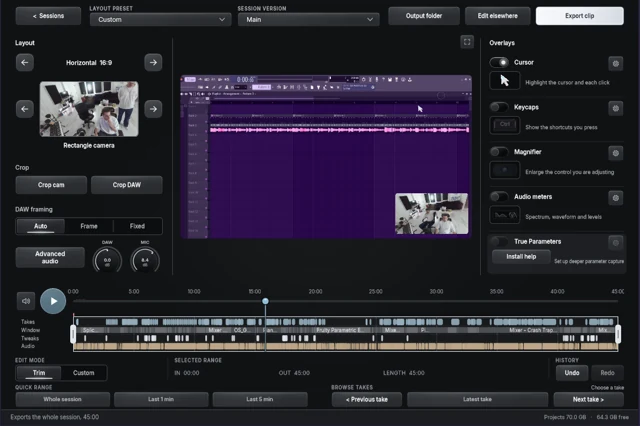
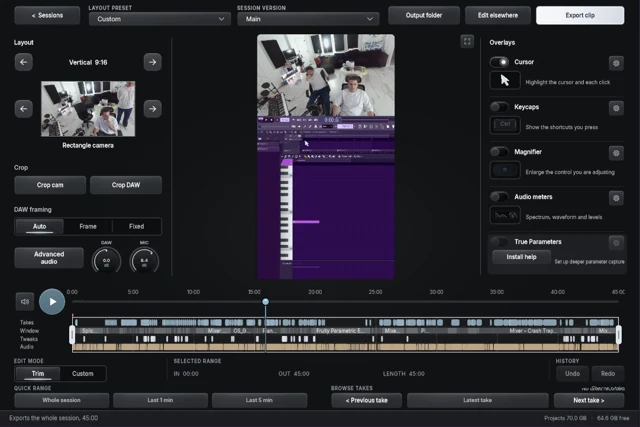

With Session Eye, screen and camera remain part of the captured session so you can change their position, crop and relative size in the editor. Make a vertical explanation, a horizontal walkthrough or another version from the same material. The sources still must be enabled at capture time.
Keep independent audio in the saved output
Separate source meters are not the same as separate file tracks. In OBS, assign music and narration to isolated tracks and enable those tracks in the recording output. A first combined listening track helps ordinary players play the complete mix.
Use the FL narration guide or Mac narration guide when routing gets complicated. If the mic is already in the DAW master or loopback mix, isolate it there before expecting clean music-only audio.
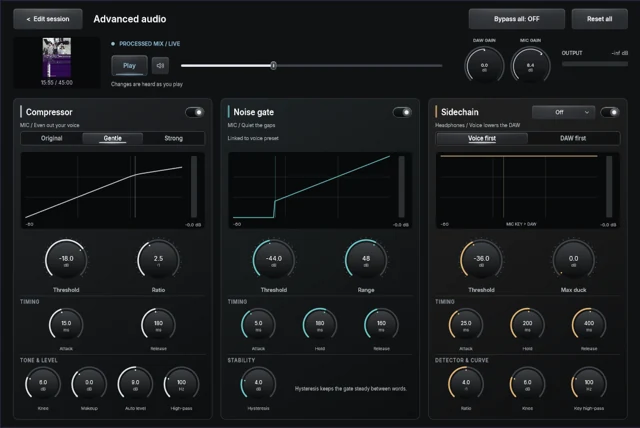
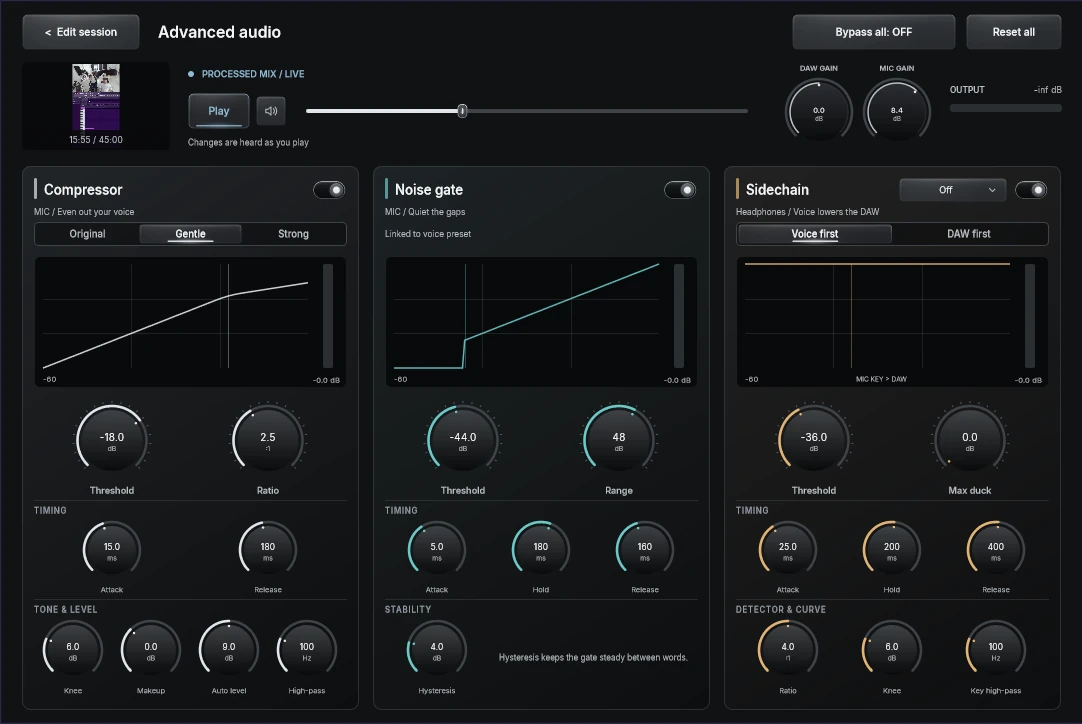
In Session Eye, the external mic and DAW audio can be mixed independently in the session editor. Keep voice processing restrained until the source recording is intelligible.
Test synchronization with two events
Record a visible clap or tap while speaking. Then play a short note from a visible keyboard or pad. The first event tests camera-to-mic timing; the second tests camera-to-DAW timing.
A constant delay can be aligned with a measured offset or in editing. A delay that grows during a longer recording needs investigation of device clocks, sample rates or capture behavior. Do not keep adding fixed offsets to hide drift.
Repeat the test while the real project runs. A quiet empty project does not reveal whether the capture and the DAW compete for resources during a dense section.
Frame for comprehension
Keep the camera away from the plugin or track being discussed. Check the export at its intended size; a readable preview on a large monitor may become illegible on a phone.
If the story is a keyboard performance, prioritize the hands and audible result. If it is a mixing technique, prioritize the relevant controls. Mouse tracking and a loupe can direct attention, but constant motion can make the screen harder to follow. Give viewers a stable frame when the music needs their attention.
Rehearse the failure cases
Unplugging or switching a device can change which source an application selects. After reconnecting, inspect the named device rather than trusting a generic default. Check for camera stutter, microphone clipping, duplicated audio and unexpected private cues.
Save a test, reopen it and mute the independent audio tracks. Verify the camera is included and the important controls remain visible. Keep that short rehearsal as a known-good reference.
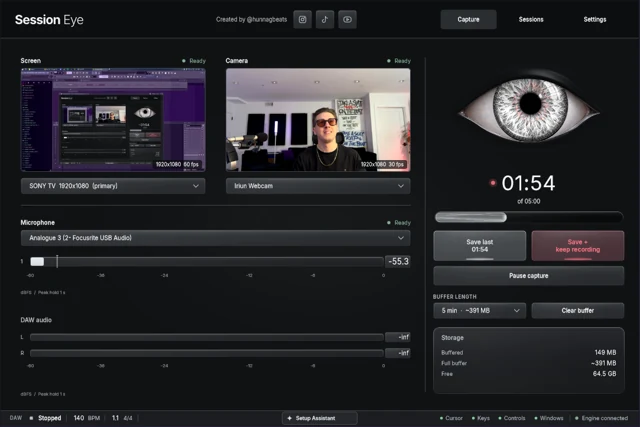
Use rolling history when you want to capture an unplanned moment. Use deliberate live composition when the scene must be ready for an audience immediately. The right workflow makes each source's job clear.
Sources & details
Reviewed . The camera and audio checks apply to the captured sources. OBS device details are linked where relevant; Session Eye examples show later layout and mix controls.