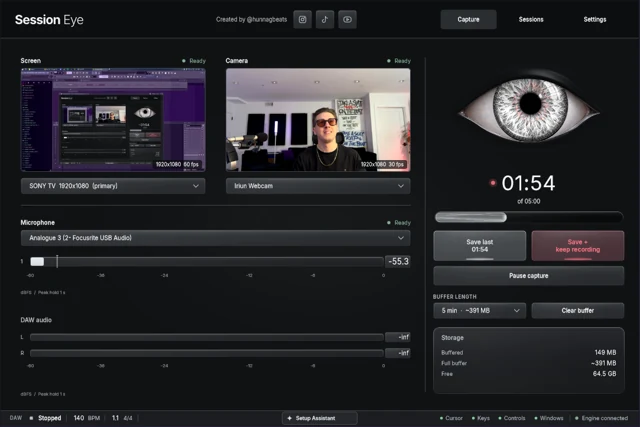
Build the FL Studio recording around the thing the viewer needs to see: the control you changed, your reaction, or your hands playing it. Capture a clean screen and camera, then decide whether the composition must work live or can be chosen afterward.
A horizontal view for the whole session

A wide frame gives the DAW room to breathe. Put the camera over a quiet area of the screen, not over the Mixer channel or plugin menu you will use next. Open those windows before recording to check the arrangement.
In the Session Eye demo below, the camera inset moves within a horizontal edit. That is useful when the best corner changes during the session: you can adjust the framing after the moment instead of repeating the performance.
A vertical view for the musical payoff
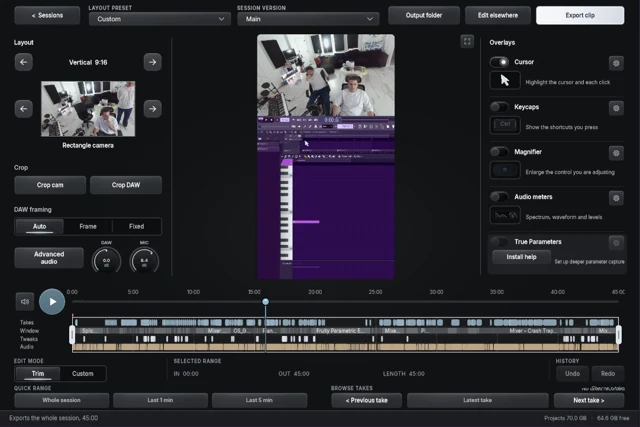

For a phone video, give the camera and the important DAW region their own space. Showing every track usually makes every track too small. Crop toward the plugin, pattern or short arrangement section that explains the change.
The vertical example puts the producer above the DAW. Watch the export on a phone and pause at the most detailed moment. If you cannot read the relevant control, crop more tightly or give that part of the screen more of the frame.
A custom edit when the story has several parts
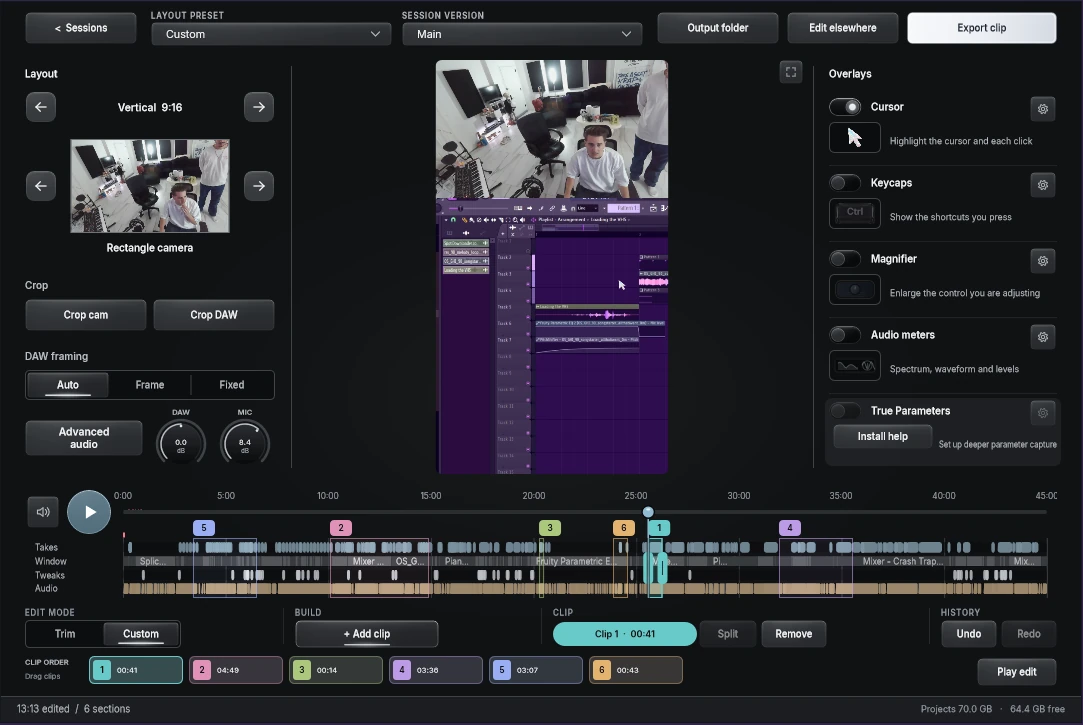
Use a Custom edit when you need the original loop, a few changes and the finished result without the gaps between them. The colored selections below identify separate moments in the source session. Keep enough of each sound for the listener to compare it.
Session Eye also offers a Photo Booth-style camera treatment among its layout choices. Choose it when a stronger camera presence helps the clip; use a straightforward inset when the screen needs more room. A layout is doing its job when the viewer notices the music, not the frame around it.
For a live OBS composition
First use the FL screen-and-audio setup so the picture and music work on their own. Then:
- Add Video Capture Device in OBS and select the intended camera.
- Choose a camera mode it supports. If a custom setting gives you a black frame, return to its default mode for the test.
- Put the camera source above the screen source in the Sources list.
- Resize and position it in the preview, then lock the sources against accidental dragging.
- Check that the webcam mic is not duplicating your separate narration mic.
The OBS video-source reference covers device options. If the camera is unavailable, close another app using it and check OS camera permission before changing the whole scene.
A normal OBS recording keeps the composed image. If the camera covered a synth control during that recording, shrinking the camera later cannot reveal those hidden pixels. Session Eye's retained screen and camera let you change that layout afterward. Both approaches still require the camera to have been on during capture.
Check sound and timing before the take
Record a visible clap or tap, a sentence, and a short FL passage. Open the file and check the sound against the picture. Measure a fixed delay instead of copying an offset from someone else's setup.
For a hands camera, press a visible key that triggers a short sound. That tests the relationship the viewer actually cares about. If the delay grows over several minutes, investigate the devices and their timing rather than adding a larger fixed offset.
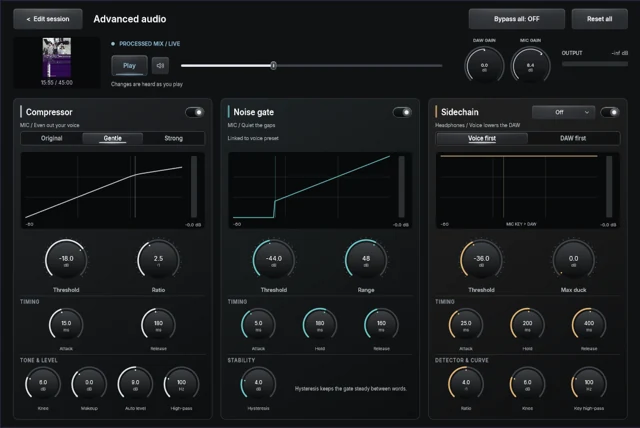
Use headphones for narration and keep the music and mic separate with this track plan. Clear sound and one readable action will do more for the clip than another animated border.
Sources & details
Reviewed . Layout examples use Session Eye screenshots and demos. The OBS camera steps follow its video-source reference; the supplied FL workspace is illustrative.