Session Eye and OBS make different starting points for a production video. OBS lets you build a scene for recording or broadcasting, with Replay Buffer available for recent footage. Session Eye keeps a rolling production session that you revisit for clip selection, mixing and layout. Choose by what you want preserved and when you want to make the edit.
What this comparison is based on
HOME Instruments publishes this guide and makes Session Eye. The comparison uses Session Eye's owned product/source material and OBS's official documentation, reviewed September 26, 2026. It is not a benchmark, a rating or a claim that every plugin configuration has been tested.
The distinction is not “OBS cannot record music.” It can, with a suitable audio path. Nor is retrospective capture unique to Session Eye: OBS has Replay Buffer.
| Decision | Session Eye workflow | OBS workflow |
|---|---|---|
| Capture unit | Production session with selected media and context | Scene-based recording, streaming or replay |
| Save after a moment | Rolling history saved into a session | Replay Buffer saves retained scene footage |
| Music and narration | Separate captured DAW and external mic audio | Separate sources/tracks when configured |
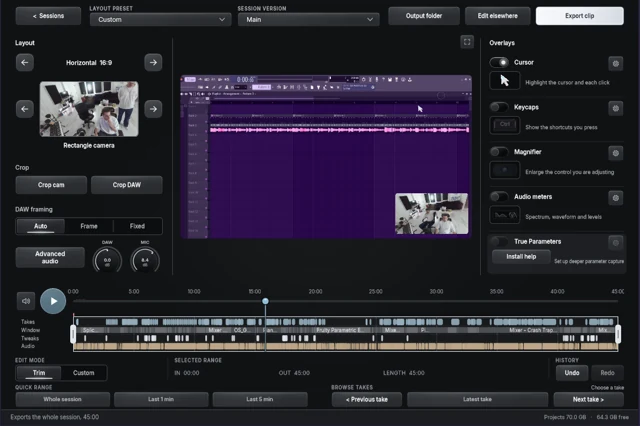
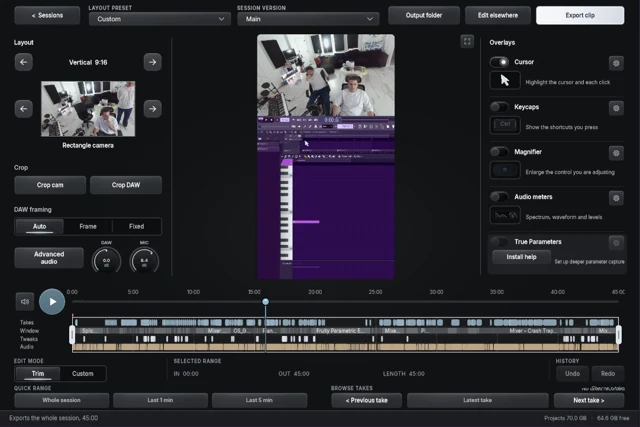
| Picture composition | Session editor can reposition screen/camera | Normal scene recording contains the composed picture |
| Main use in this comparison | Make music, choose clips afterward | Build and operate a recording or live scene |
| Deeper DAW detail | Integration-dependent context/parameters | Depends on additional tools and setup |
Where OBS is the stronger starting point
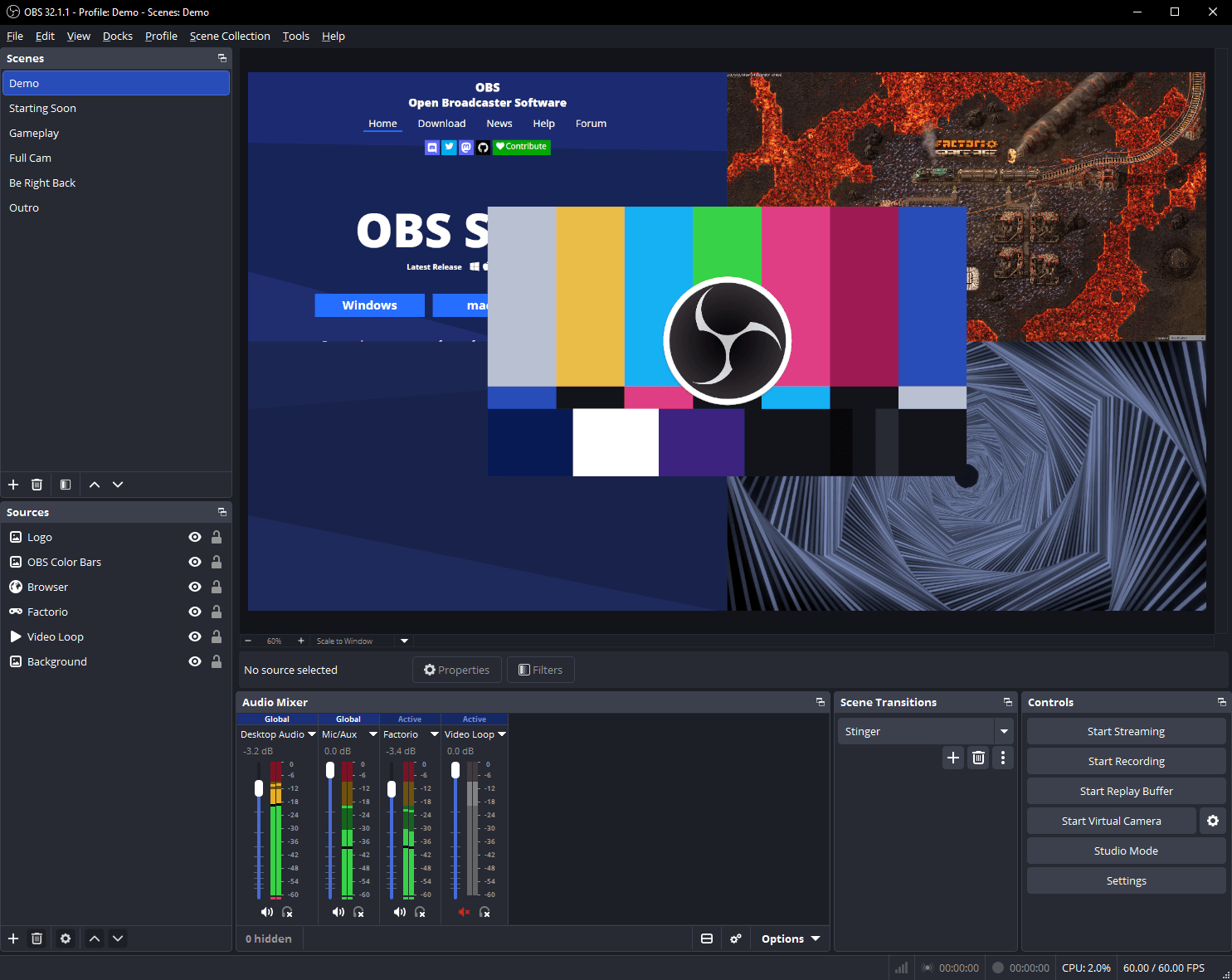
Use OBS when you need livestreaming, live scene switching or an established collection of broadcast sources and plugins. It is free and open source, with extensive configuration options.
OBS also works well for a planned tutorial whose layout is already decided. Configure a clean DAW audio route, add the mic and camera, record the scene and edit the resulting file in your preferred editor.
It can preserve separate audio tracks, and additional recording setups can preserve more than a single composed picture. Those possibilities should be evaluated fairly, along with the extra configuration they require.
Where Session Eye changes the work
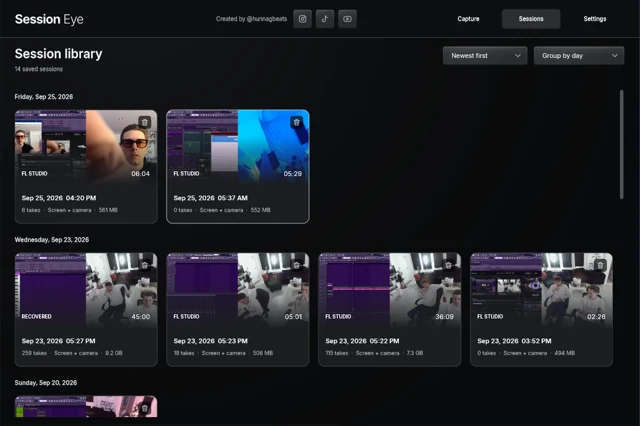
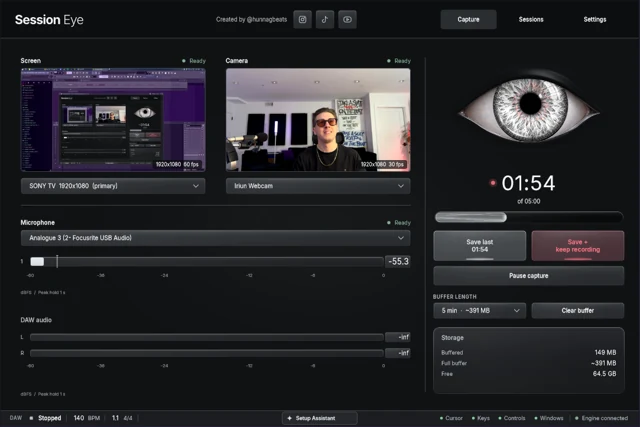

Session Eye keeps a rolling memory of the production session. You can save when you realize something was useful, then revisit synchronized DAW audio, screen, camera and microphone in its session editor.
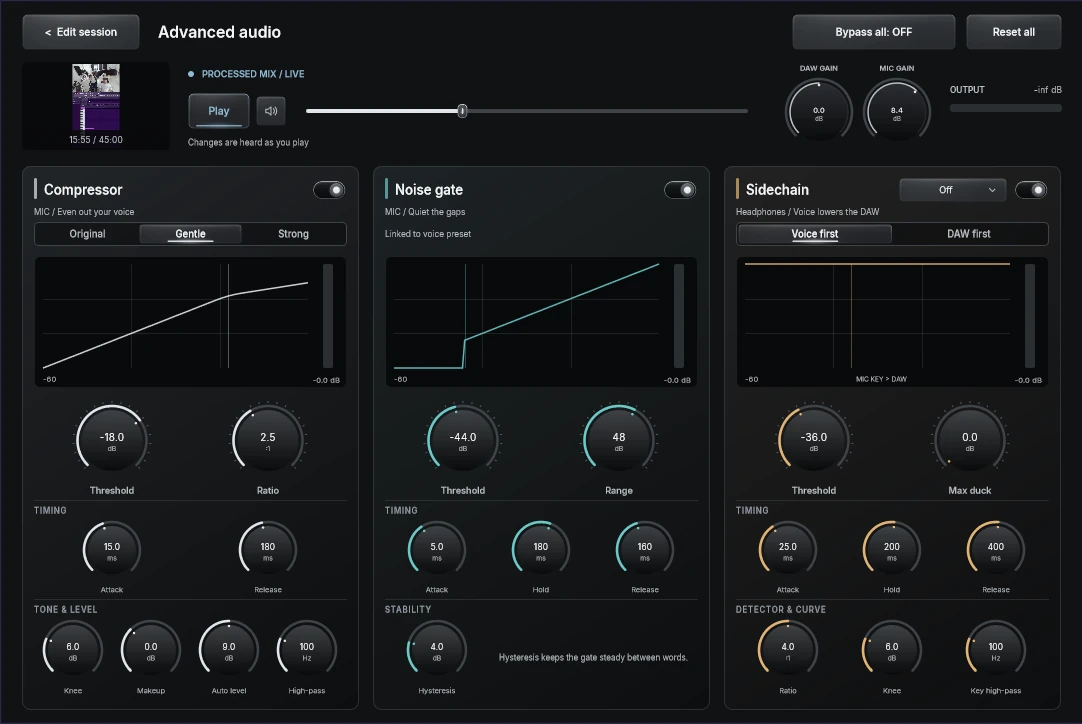
That order matters during improvisation. Instead of maintaining the final camera composition while finding a sound, you can choose it afterward. Select several portions, adjust the music/voice balance, use a layout preset and save different versions from the same capture.
The activity timeline helps you find the part you remember. Keep the useful lead-in, show the change and let the result play. Save the DAW project too: the session video does not replace its editable notes, samples and plugin state.
Compare replay honestly
Both workflows need capture active before the moment. Neither can restore a camera that was off or music that never reached the recorder.
An OBS replay normally contains the scene composition that ran during the retained interval. A Session Eye save gives you the captured session sources and editing workflow. Which is better depends on whether the scene was already the result you wanted or whether you need to make new layout decisions.
For either product, set sufficient history, let it fill, save a rehearsal and inspect the actual duration. A settings value is not a substitute for a successful saved test. See the rolling recording guide.
Audio routing still deserves attention
On Windows, a hardware ASIO output may not feed OBS Desktop Audio. Interface loopback, a supported input extension or another explicit route can solve that. On Mac, supported modern OBS configurations can capture application audio natively; BlackHole is not always necessary.
Session Eye captures the DAW mix at its capture point and the external mic independently. Tracks or hardware monitored outside that path still require attention. In both workflows, verify which mix is recorded and whether narration has accidentally entered it twice.
The ASIO guide and Mac guide address those platform-specific choices.
Try one real editing task
Record a musical change with narration and a webcam. Then make a short vertical version and a longer horizontal version.
Check whether you can move the camera without losing DAW detail, rebalance speech, retain the original performance and reopen the edit later. If using OBS, test the source/track configuration you would realistically maintain, not an intentionally limited setup. If using Session Eye, verify the actual build and integration details you need.
Do not choose from an imagined future feature list. Choose the workflow that completes this rehearsal with the sources and control you require.
A practical choice
Keep OBS at the center when the audience needs the scene live. Use Session Eye when the production session should come first and the content decisions should come afterward. It can also be reasonable to use different tools for different jobs, provided their device access and resource use are tested.
Neither a long feature list nor a polished preview proves a reliable recording. A saved session or file containing the right picture, sound and editing choices does.
Sources & details
Reviewed . Compares Session Eye with a standard OBS scene/replay workflow. OBS plugins and separate-source setups can extend that workflow; the supplied screenshot shows OBS 32.1.1.